> For the complete documentation index, see [llms.txt](https://docs.tessl.io/llms.txt). Markdown versions of documentation pages are available by appending `.md` to page URLs; this page is available as [Markdown](https://docs.tessl.io/administrators/administrating-organizations-workspaces-and-roles.md).
# Administrating Organizations, Workspaces, and Roles
{% hint style="info" %}
**Takeaways**
* How organizations, workspaces, and roles fit together in Tessl.
* How to set up your organization, create workspaces, and invite users with and without SSO.
* Which role to give a user, with worked examples for common team setups.
{% endhint %}
## How organizations, workspaces, and roles fit together
An **organization** is the top-level entity, usually your billing or corporate entity. Inside it, **workspaces** group skills and give role-based access to the people who work on them. A user is granted a **role** per workspace, and that role decides what they can do there: install, publish, run evals, manage members, or administer the workspace. Skills are published as plugins, so the [role](/administrators/roles.md) permission tables describe these same actions in terms of plugins.
* **Organization: Acme**
* **Org admin: Samira** manages all workspaces and users.
* **Workspace: engteam**
* **Manager: Jennifer** invites members and publishes.
* **Publisher: Eddie** publishes skills for the team.
* **Member: Joe** installs skills and runs reviews.
* **Workspace: dsteam**
Actions such as running evaluations and publishing happen from the CLI against the Tessl platform, and what a user can do depends on their role and the workspace selected for the task. Access to skills and features in the web app follows the same rule.
## Set up your organization
An organization is created automatically for you when you sign up, and it is sometimes created during the presales phase. If someone has already invited you to an organization, you are added to that organization instead when you accept the invite, so you do not need to create one.
If your organization already has workspaces, create a new one from the workspace switcher in the sidebar, below the organization dropdown. If your organization has none yet, the sidebar instead shows a "Let's set up your first workspace" card: click its **Create workspace** button.
{% hint style="info" %}
When prompted, click **Create workspace** and name it after your team, for example *engteam*. Workspace names must be unique, and they appear in the names of any plugins published from them, which is most visible for publicly published plugins.
{% endhint %}
{% hint style="info" %}
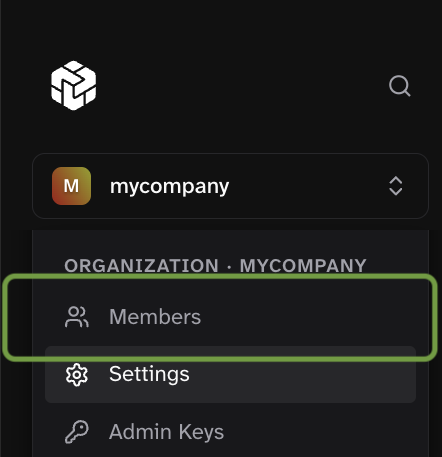
If you are in an organization with teammates but have no workspaces, you were likely invited to the organization but not to a workspace. Contact one of your organization admins, who you can see on the organization **Members** screen.
{% endhint %}
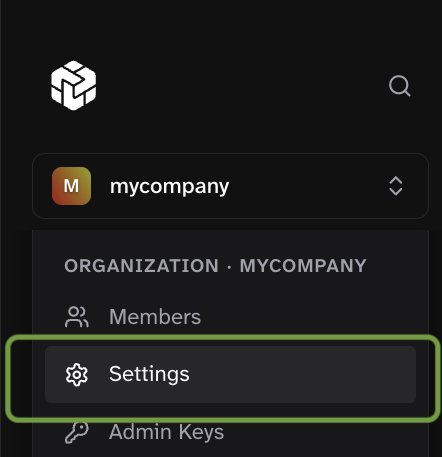
Open **Settings** for your organization from the organization dropdown at the top of the sidebar. Rename the organization to your company name, and enable public sharing if you want users to be able to share skills publicly.
## Invite users
### Without SSO
Only organization admins can invite users to the organization. Invite users from the organization's **Members** screen, which you open from the organization dropdown at the top of the sidebar, assigning the workspaces each user should access along with the workspace role they get there. Invited users join the organization as members, and you can promote them to organization admin later, as below. You can also change their workspace roles from **Settings → Members** in the workspace. A user must accept their invite before you can edit them further.
### With SAML SSO
Users are provisioned on their first login and start with the organization **member** role and no workspace access. An administrator then adds each user to workspaces with the right roles from **Settings → Members** in each workspace. See [SSO](/administrators/sso.md) for setup.
## Promote a user to organization admin
Once a user exists, you can elevate them to organization admin to let them create workspaces and manage users. On the organization **Members** screen, assign the admin role.
## Admin keys
Admin keys give programmatic access across workspaces, for integrations and automation. Set an expiry of up to one year.
## Manage workspace membership
Switch to a workspace from the workspace switcher in the sidebar, then open **Settings** and select the **Members** card to set [roles](/administrators/roles.md) for users who need more than the default access, such as running evals, publishing, or managing members. Search for a user, select a [role](/administrators/roles.md), and click **Add**.
## Example role setups
These examples show common [role](/administrators/roles.md) assignments when rolling Tessl out.
### Samira, organization admin
Samira administers Tessl and champions skills. She needs to manage every workspace, assign users, and create new workspaces. Make her an organization admin.
### Jennifer, team manager
Jennifer runs a workspace. She needs to add members, publish, and remove other managers. Give her the **manager** or **owner** role on her workspace, depending on whether she needs to remove other owners or delete the workspace.
### Eddie, lead engineer
Eddie installs published skills and publishes skills for his team in the engteam workspace. Give him the **publisher** role there. He can be a **member** of other workspaces where he only needs to search and install.
### Joe, new-hire engineer
Joe searches and installs skills from the engteam workspace and runs reviews, but does not yet publish. Make him a **member** of the engteam workspace. The **consumer** role is for pure consumption only: a consumer can install skills but cannot run reviews or see who else is in the workspace.
---
# Agent Instructions
This documentation is published with GitBook. GitBook is the documentation platform designed so that both humans and AI agents can read, navigate, and reason over technical content effectively. Learn more at gitbook.com.
## Querying This Documentation
If you need additional information that is not directly available in this page, you can query the documentation dynamically by asking a question.
Perform an HTTP GET request on the current page URL with the `ask` query parameter, and the optional `goal` query parameter:
```
GET https://docs.tessl.io/administrators/administrating-organizations-workspaces-and-roles.md?ask=&goal=
```
`ask` is the immediate question: it should be specific, self-contained, and written in natural language.
`goal` is optional and describes the broader end goal you are ultimately trying to accomplish on behalf of the user. GitBook uses it to tailor the answer towards what is most useful for that goal.
The response will contain a direct answer to the question and relevant excerpts and sources from the documentation.
Use this mechanism when the answer is not explicitly present in the current page, you need clarification or additional context, or you want to retrieve related documentation sections.
.png?alt=media)
.png?alt=media)

.png?alt=media)
.png?alt=media)
.png?alt=media)
.png?alt=media)